
Trouble Shooting
How to Fill Out the Form
1. Select who you are registering.

2. Choose who you are registering.

If a verification screen appears, select all matching photos and click “VERIFY” to continue.


3. Enter your information.

About Company Information
Option 1: Search Company
Enter your company name, postcode/zipcode, and country/region, then click "Search".
If your company is found, you can import the details.
If not, click "Enter Manually" and fill in all fields.

Option 2: Enter Company Details Manually
Fill in all company information yourself.

4. Review and choose your preferences for handling personal information, then click “Next”.

5. Answer 4 questions about your objectives, then click “Next”.

6. When the “Badge Offer” popup appears, click “Accept” to continue.

7. Check your information, read the Terms and Conditions, tick the box to agree, then click “Complete Order”.

8. When you see “REGISTRATION COMPLETE”, your pre-registration is finished.

9. You will receive a confirmation email. Your visitor badge will be available for download 3 weeks before the show.

Frequently Asked Questions
Q. I can’t download my visitor badge.
A. The download page opens 3 weeks before the show. Please wait until then.
Q. I left the page halfway. How can I continue?
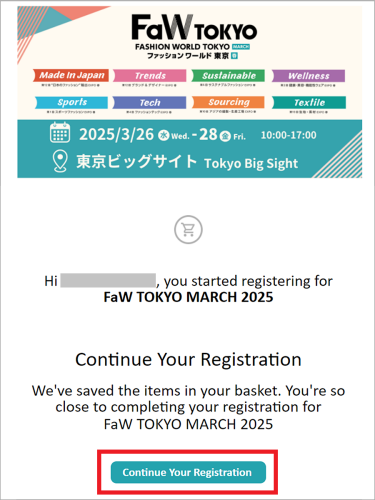
A. Check your email for “Continue your Registration” from fw-rp@welcome-rxjapan.jp.
Click the button to resume. (Valid only once.)
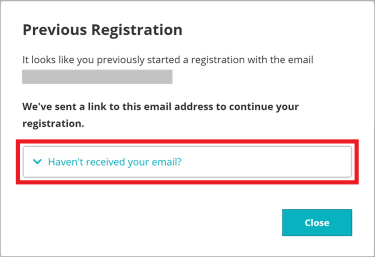
Q. I can’t find the email / I want to start over.
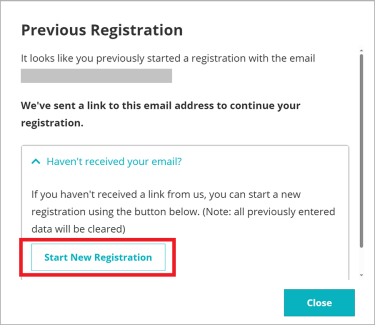
A. Re-enter your email on the registration page. When the pop-up appears, click “Haven’t received your email?”.
Click "Start New Registration" to register again.
Q. Registered as general visitor but should be VIP.
A. Contact us with your name, company name, email address, and job title.
Q. Request to delete registration.
A. Contact us with your name, company name, and email address.
Contact
If the above doesn't resolve your issue or if you have any other questions, please contact our support desk.